Help – Sessions
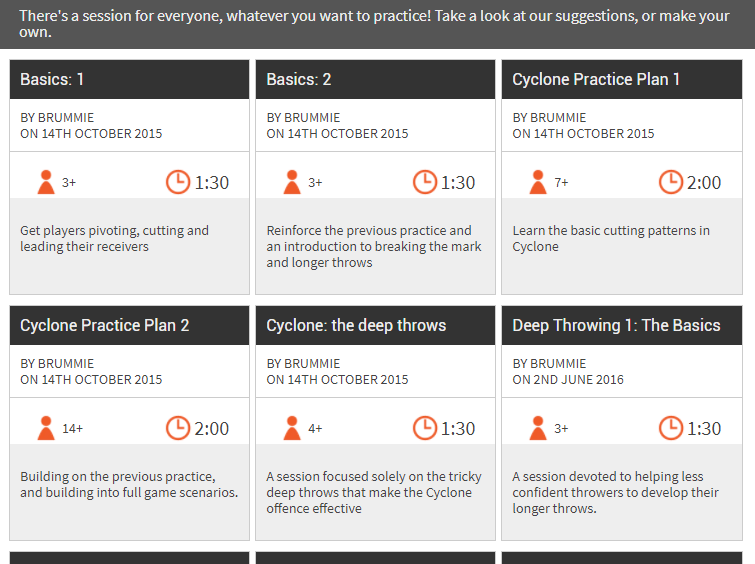
With Flik, you can either combine drills into your own practice plans, or explore the library of Flik sessions created by Brummie, each built to work on a specific theme or area of the game.
Create Session
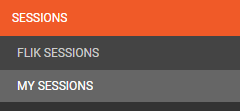
Choose “My Sessions” from the menu:
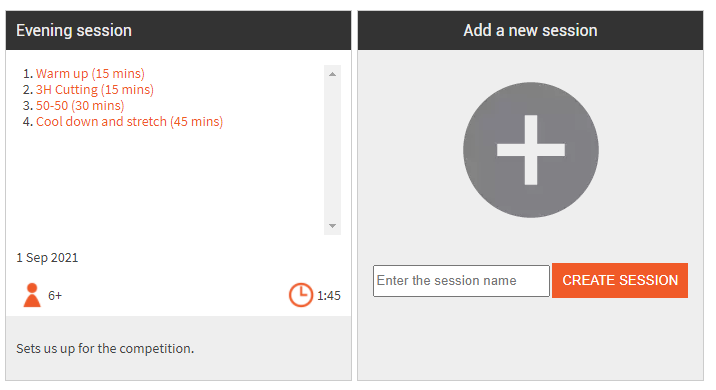
You’ll see all the sessions you’ve already created, and then the “Add a new session” box. Type in a name, and click the “Create Session” button.
The session is now created, with no drills. Browse the drills to add drills to your session. Find out about browsing drills here. You can find out more about adding drills to your sessions further down this page.
Edit a Session
Within the Session page, you’ll see three tabs; “Session Plan”, “Add a drill” and “Edit Session Info”.
Session Plan
Each drill is presented in a box containing information such as Duration, Minimum number of players, and the skills that the drill practices:

Re-order Drill: Click the Up or Down arrow. The drill will move to its new position. It’s saved automatically for you.
Remove Drill: To remove a drill from a session, simply click the red ‘X’ in the drill box, then “OK” on the confirmation box that appears. There’s no “Undo” for this, but you can easily add the drill back (see below) if you made a mistake.
Change drill duration: Click on a drill to see the drill information appear. Here, you can find out more about the drill, see the first step (setup diagram) for the drill, and set the duration. Choose your duration (in minutes) from the black boxes – you can apply a duration of between 5 and 60 minutes. Again, the changes are saved automatically, and you’ll see the session summary change at top right.
Add a Drill to a Session
Do you need to practise a particular skill in this session? Just click one of the skill buttons. If you know you want a drill that contains a specific word, use “Search” instead.
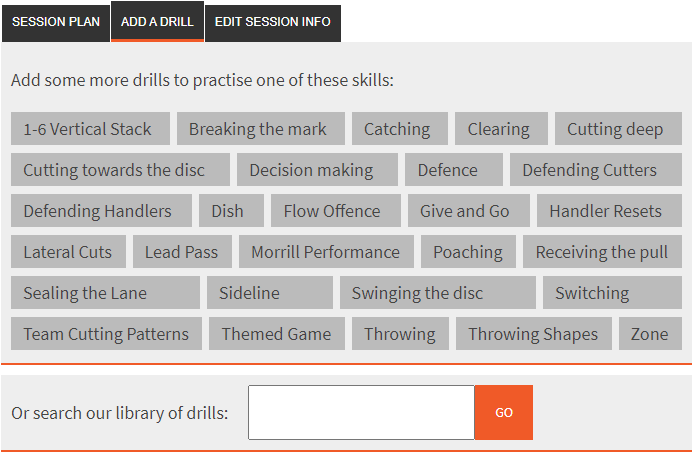
Either way, you’ll get a list of drills to select. Tick the boxes next to any that you’d like to include, and click the “Add selected drills” button. The drills are added to the end of your session with default durations of 5 minutes, but you can change the sequence and timings as described above.
Edit Session Info
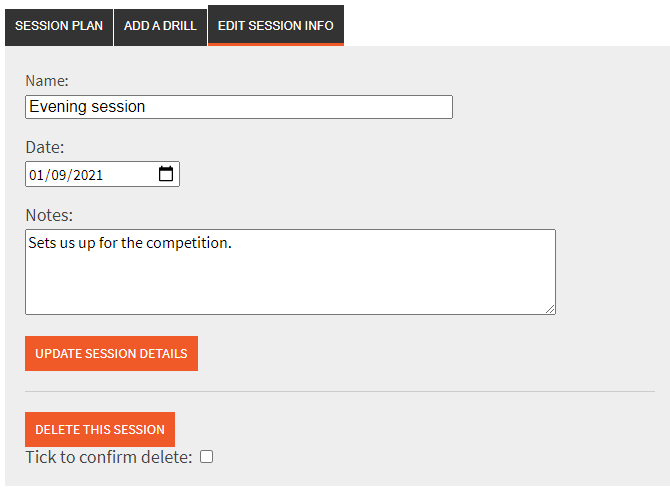
Click the Edit Session Info tab to edit the session name, date and notes. These are all private to you. Once you have edited the information, make sure to click Update session details to save the information.
You can also delete a session from this tab. You’ll need to tick the box to confirm that you want to proceed.
Add a Drill to a Session (from a Drill page)
If you’re looking at a drill, then you can add it directly to a session. This is described in the Drill Help page.